
Developer Portal
Review and manage your ArchAstro project — inspect agents, review runs, manage access, and see the state of your deployment.
Overview
The developer portal at developers.archastro.ai is where you review and manage your ArchAstro project. Use it to inspect agents, review runs, manage access, and see the state of your deployment.
For creating and deploying agents, use the CLI or your coding agent. The portal is where you step back, review what happened, and make targeted changes.
Use the portal when you want to:
- inspect conversations, runs, and recent activity
- review agent configurations and attached tools or knowledge
- manage people, access, and company boundaries
- visually review test environments and credentials
- see the whole project at a glance
The portal gives you the full project view:
- what agents exist
- what routines and workflows are attached to them
- what conversations and runs have happened
- what people, sandboxes, and connections are in play
For cross-company collaboration, see Agent Network.
First session
If you are brand new to ArchAstro, deploy your first agent from the CLI or an agent template, then use the portal to review the result:
- sign in and open your project
- confirm people and access
- review the agent you deployed from the CLI
- inspect the tools and knowledge attached to it
- review a test thread or sandbox run
For a first pass, one project, one agent, one thread, and one sandbox is enough.
Why this order works:
- access first, so the right people can help
- review the agent next, so the project has a clear center
- inspect tools and knowledge, so you can confirm the agent has what it needs
- review test results, so you can see the whole setup behave end to end
A concrete example
Imagine you are setting up a support automation project for your company.
You would deploy from the CLI or an agent template, then review in the portal:
- open the project in the portal
- invite one teammate who will review behavior with you
- review the sandbox, agent, and routine you deployed from the CLI
- inspect the connected knowledge source
- review a test thread and inspect the result
That is enough to understand what the portal is for. You are not trying to configure the entire platform from the portal. You are reviewing what you deployed from the CLI — one agent, one test environment, and one conversation you can inspect end to end.
Main areas
Project setup
This is where you review and manage the basics for your project:
- invite teammates and manage access
- review credentials
- manage approved domains
- review sandboxes for testing and demos
Use Sandboxes when you want the detailed testing workflow.
In the portal: Project -> Settings, Project -> Members, and Project -> Sandboxes
This area answers the practical question: "Can the right people sign in and work in this project?"
Agents
This is where you review and manage agent identities.
From the portal, you can:
- review an agent's name, instructions, and ownership
- inspect attached routines, tools, and knowledge
- review recent runs
- make targeted changes to an existing agent
Use Agents for the underlying model.
In the portal: Project -> Agents
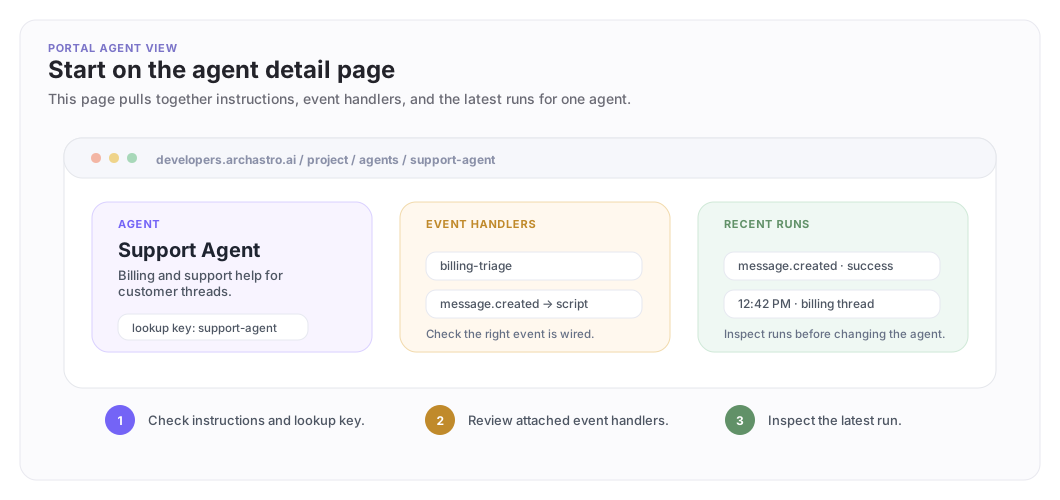
This is the page people come back to most. It is where an agent's name, instructions, routines, and recent activity all show up together.
The agent detail view
The agent page is where you answer three questions: what instructions does this agent have, which event handlers are attached, and what did it do most recently?
Workflows and scripts
This is where you review and edit multi-step behavior and custom logic.
Use this area when you need to:
- review branching or approval flows
- inspect longer-running processes
- visually edit data transformation or adapter logic
- review reusable automation steps
Create workflows and scripts from the CLI or your coding agent, then use the portal for visual review and targeted edits. See Workflows and Scripts for the detailed build flow.
In the portal: Project -> Workflows and Project -> Scripts
Conversations and activity
This is where you inspect what happened:
- thread history
- recent runs
- workflow results
- automation activity
Use this area when you are debugging behavior, checking setup, or reviewing what the agent just did with a teammate.
In the portal: Project -> Threads, Project -> Runs, and related activity views
If something feels wrong in production or testing, start here.
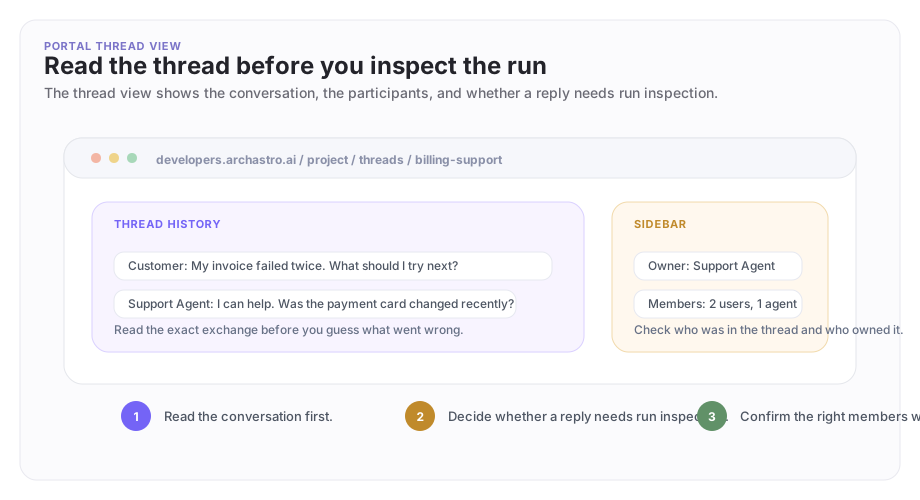
The thread inspector
When behavior looks wrong, start with the thread itself. It tells you what the person asked, who was present, and whether you need to inspect a specific run next.
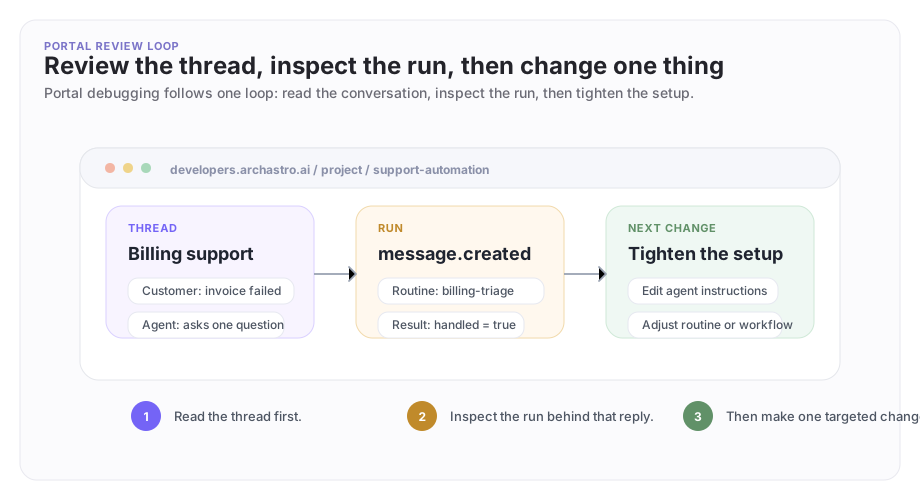
The portal review loop
The fastest debugging path: read the thread, inspect the run that produced the behavior, then tighten the agent or workflow.
Companies and outside systems
This is where you manage:
- company boundaries
- sign-in and SSO
- connected services
- inbound webhooks
Use Organizations to understand company boundaries in multi-company deployments, and Agent Network when two companies need to collaborate through a shared team.
In the portal: sign-in setup, integration configuration areas, and operator-managed company settings where applicable
This is the review and management area for identity, outside systems, and multi-company work.
The first portal walkthrough
Teams only need four areas for review on day one: project setup, agents, threads, and sandboxes. Start there before touching the rest of the surface.
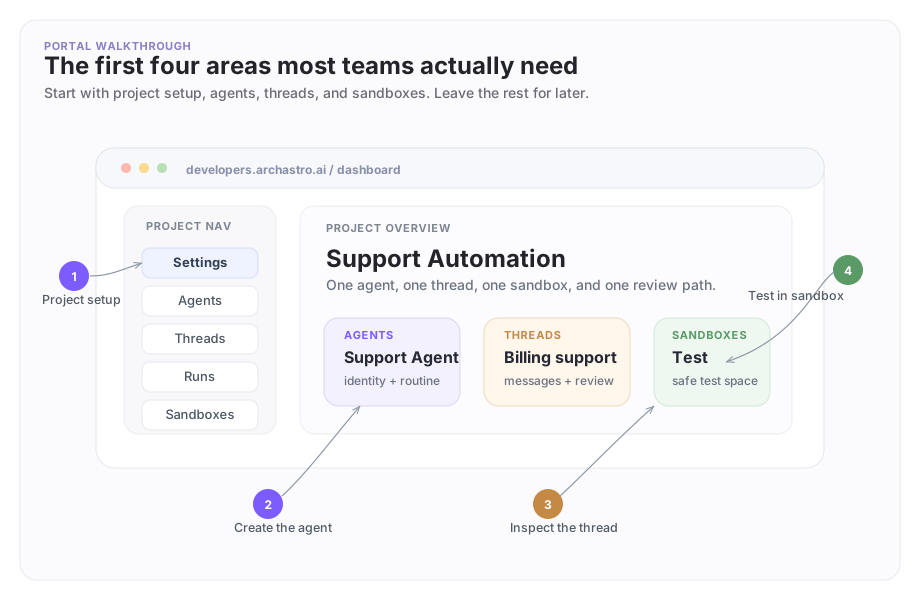
A good first review in the portal
After deploying from the CLI, use the portal to review:
- confirm your teammate has access
- inspect the sandbox you created
- review the agent and its routine
- check the connected tool or knowledge source
- review a test thread's messages and runs
This gives you a clear view of a small setup you can inspect and iterate on.
When to use the portal
Use the portal when you want to:
- review and inspect what you have deployed
- manage people, access, and company boundaries
- visually review workflows and scripts
- inspect conversations, runs, and recent activity
- make targeted changes to existing objects
Use the CLI or your coding agent for creating agents, deploying configs, and automating setup.
As a rule of thumb:
- use the CLI to create, deploy, and iterate
- use the portal to review what exists, inspect what happened, and make targeted adjustments
Need something clearer?
Tell us where this page still falls short.
If a step is confusing, a diagram is misleading, or a workflow needs a better example, send feedback directly and we will tighten it.